Artificial intelligence is rapidly reshaping the design industry, and Figma has become one of the most accessible platforms for integrating AI into everyday design workflows. For designers, understanding how to set up AI-powered workflows in Figma is no longer optional—it is a competitive advantage that can significantly improve speed, consistency, and creative output.
This guide explains how AI fits into Figma, which tools to use, and how to apply them effectively in real design work.
Why Use AI in Figma Workflows?
AI in Figma is not about replacing designers; it is about augmenting decision-making and automating repetitive tasks. When properly implemented, AI-powered workflows can:
-
Reduce time spent on manual layout and content generation
-
Improve visual consistency across large design systems
-
Support faster ideation and prototyping
-
Allow designers to focus more on strategy and creative thinking
For teams working under tight deadlines or handling complex products, AI becomes a productivity multiplier.
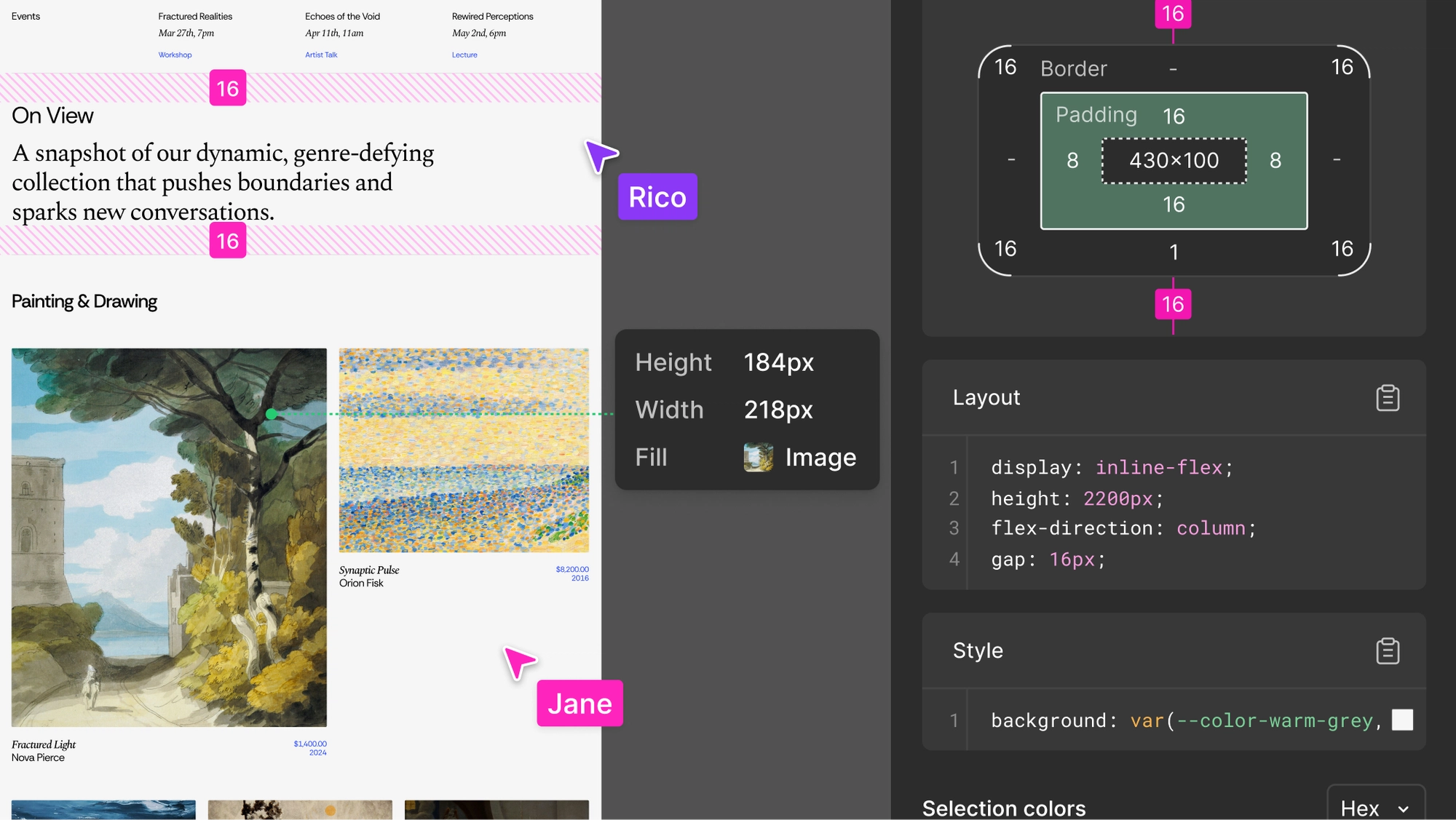
Understanding AI Capabilities in Figma
Figma supports AI workflows primarily through built-in features and third-party plugins. Common AI-driven capabilities include:
-
Text generation: Creating placeholder copy, UI text, or microcopy
-
Image generation: Producing illustrations, icons, or background visuals
-
Layout assistance: Auto-organizing components and responsive frames
-
Design system support: Suggesting styles, colors, and components
These capabilities can be combined to create end-to-end AI-assisted workflows.
Step 1: Prepare Your Design System
Before adding AI tools, ensure your design system is well structured. AI performs best when it can reference clear rules.
Best practices include:
-
Use consistent naming for components and styles
-
Define color, typography, and spacing tokens clearly
-
Maintain reusable components for buttons, cards, and layouts
A clean design system allows AI tools to generate outputs that align with your brand and visual language.
Step 2: Install AI-Powered Figma Plugins
Figma’s plugin ecosystem is the primary gateway to AI workflows. Depending on your needs, look for plugins that support:
-
AI copywriting for UI text and UX content
-
AI image or illustration generation
-
Smart layout or wireframe generation
-
Content population using prompts
After installation, organize your frequently used plugins and define when each should be used in your workflow.
Step 3: Use AI for Ideation and Wireframing
AI is particularly effective during the early design phase. You can use it to:
-
Generate initial wireframes based on product descriptions
-
Create quick layout variations for comparison
-
Produce placeholder text that reflects real use cases
This approach reduces blank-canvas anxiety and helps teams move from concept to structure more quickly.
Step 4: Automate Repetitive Design Tasks
Once your layout is defined, AI can help automate repetitive work such as:
-
Populating UI screens with realistic content
-
Resizing and adapting layouts for different devices
-
Generating multiple design variations for A/B testing
By delegating these tasks to AI, designers can spend more time refining user experience and visual storytelling.
Step 5: Review and Refine with Human Judgment
AI outputs should always be reviewed critically. While AI can generate fast results, it lacks full contextual understanding of user needs and business goals.
Designers should:
-
Evaluate usability and accessibility
-
Adjust tone, hierarchy, and visual balance
-
Ensure brand alignment and emotional impact
The most effective AI-powered workflows are collaborative, with AI supporting human expertise rather than replacing it.
Best Practices for AI-Powered Design Workflows
To maximize results, keep these principles in mind:
-
Treat AI as a creative assistant, not a final decision-maker
-
Use clear prompts and constraints for better outputs
-
Test AI-generated designs with real users when possible
-
Continuously refine workflows as tools evolve
Staying flexible is essential, as AI features in Figma are developing rapidly.
Setting up AI-powered workflows in Figma allows designers to work faster, smarter, and more strategically. By combining a solid design system, the right AI plugins, and strong human judgment, designers can transform Figma into a powerful AI-assisted design environment.
As AI continues to evolve, designers who understand how to integrate it into their daily workflows will be better positioned to create impactful, efficient, and future-ready designs.
Comments
Post a Comment